You will receive an email containing an invitation to your course. Click the link — what happens next depends on whether you already have a Linax account.
1 · The invitation
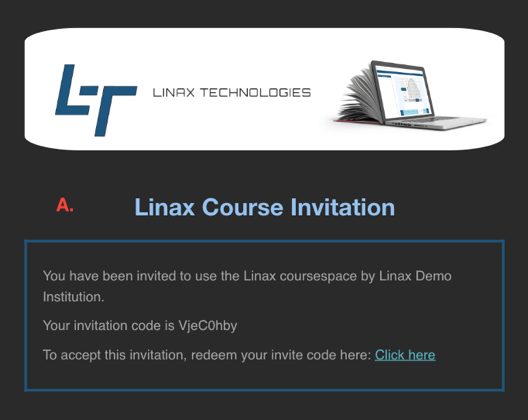
The invitation names your course and carries the redeem code that grants access to it.
Keep the redeem code from this email — you will need it if you are creating a new account.
The invitation email with your course link and redeem code.
2a · No account yet
1
The link brings you to the sign-up page.
2
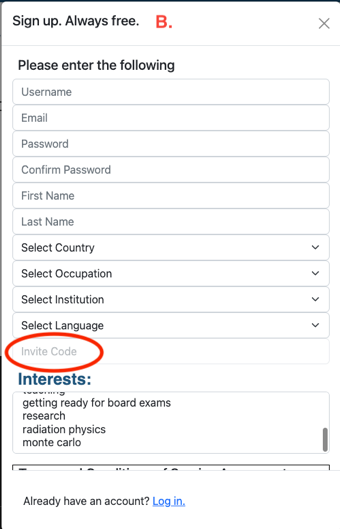
Create an account and enter your redeem code in the designated input field.
3
Activate your account by following the link in the activation email you receive after signing up.
The sign-up form, with the invite-code field.The activation email — follow this link to finish.
2b · Existing account, not logged in
1
The link brings you to the sign-up page. Select “Log in” at the bottom of the form.
2
Log in with your credentials.
3
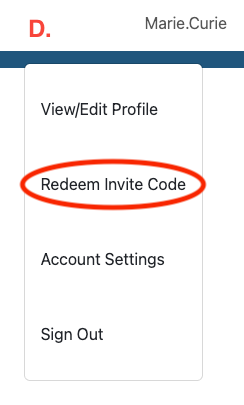
Open the upper-right drop-down menu and select “Redeem Invite Code”.
4
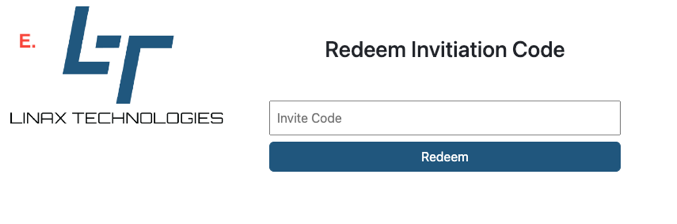
Enter the code and click “Redeem”.
2c · Already logged in
The link takes you straight to the Redeem Invitation Code page.
Upper-right drop-down → Redeem Invite Code.Enter the code and Redeem.
3 · Logging in from now on
1
Visit linax.ca.
2
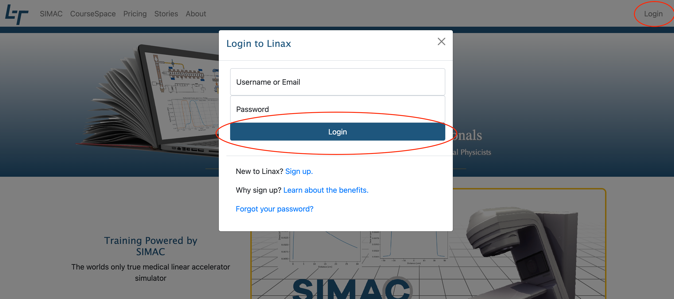
Click the “Login” button in the top-right corner.
3
Fill in your credentials and click “Login”.
The login dialog on linax.ca.
Linax Technologies Ltd.
Platform Guide
Course Space
PLATFORM · 02
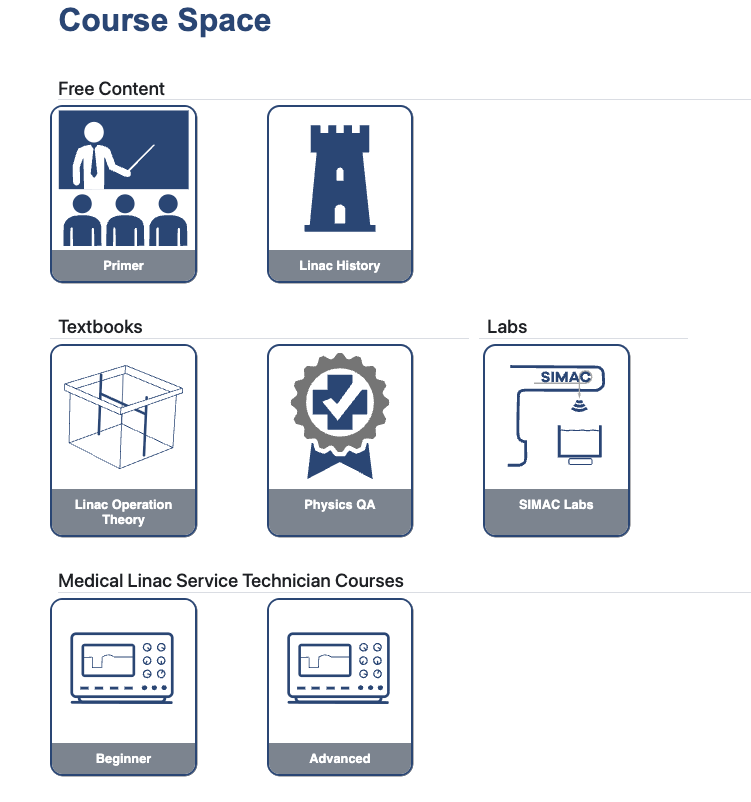
The Course Space tab holds all textbooks and linac resources. You will always have access to the Free Content, plus the textbooks, labs and technician courses assigned to your class.
What is on the page
Course Space is grouped into four areas. You will always see Free Content; the rest depends on what your class has been given.
Free Content
Open to everyone — the Primer and Linac History.
Textbooks
Linac Operation Theory — machine theory catered to Medical Physicists. Physics QA — quality assurance theory and procedures.
Labs
SIMAC Labs — hands-on labs performing specific tasks on the simulators.
Medical Linac Service Technician Courses
Beginner and Advanced — practical machine servicing catered to Service Technicians.
The Course Space tab — Free Content, Textbooks, Labs and the Medical Linac Service Technician Courses.
Changing language
1
Access the platform via Google Chrome.
2
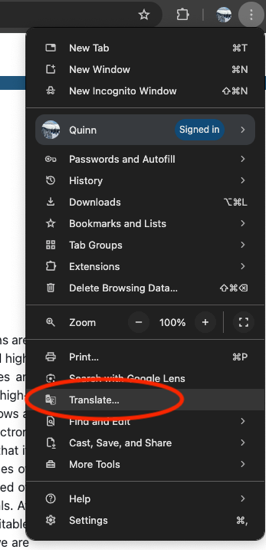
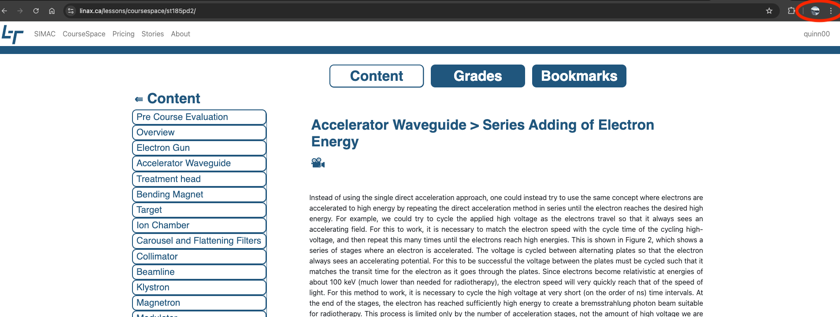
Click the three dots in the top-right corner of the browser, then “Translate”.
3
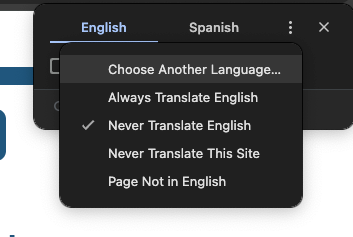
Select the three dots and click “Choose another Language”.
4
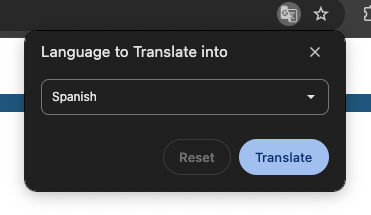
Find your desired language and click “Translate”.
The translation is not perfect, especially with technical terms, and text inside images does not translate.
Chrome's three-dot menu → Translate.Choose Another Language.Pick a language and Translate.
Linax Technologies Ltd.
Platform Guide
Textbooks
PLATFORM · 03
Textbooks and technician courses are all laid out identically: the content sits alongside a chapter table of contents.
Chapters & topics
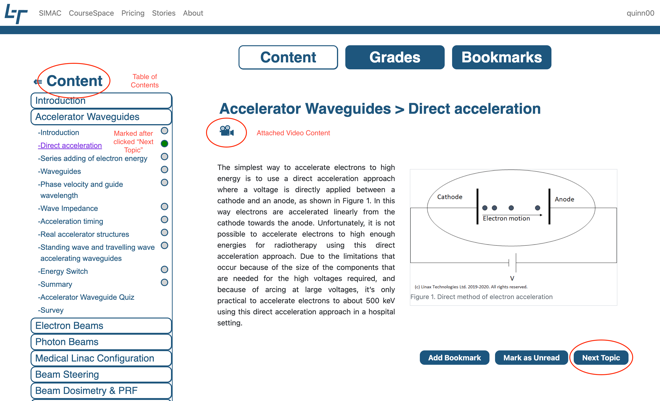
Each chapter holds multiple topics, and a topic can have subtopics that expand beneath it. Your position is tracked in the table of contents as you go.
Next Topic
Completes the section and checks it off in the table of contents.
Video content
Click the camera or image icons to see additional video content.
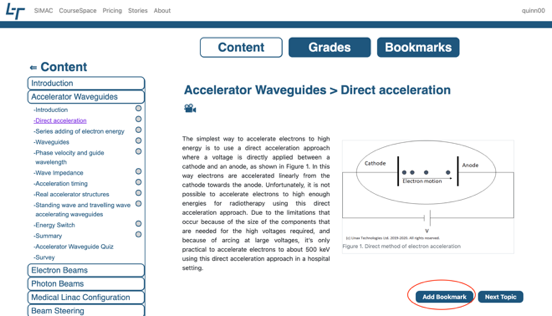
Add Bookmark
At the bottom of a topic — saves it to the Bookmarks tab.
A textbook topic with the chapter table of contents on the left.
Attached video content, with Next Topic to complete the section.Add Bookmark and Next Topic at the bottom of a topic.
Linax Technologies Ltd.
Platform Guide
Quizzes, grades and bookmarks
PLATFORM · 04
Each chapter has one quiz at the end of the chapter. Results are stored in the Grades tab, and any topic can be bookmarked for quick return.
Quizzes
Click “Start” and answer all the questions to complete it.
You can come back to an unfinished quiz and complete it, or start a new attempt.
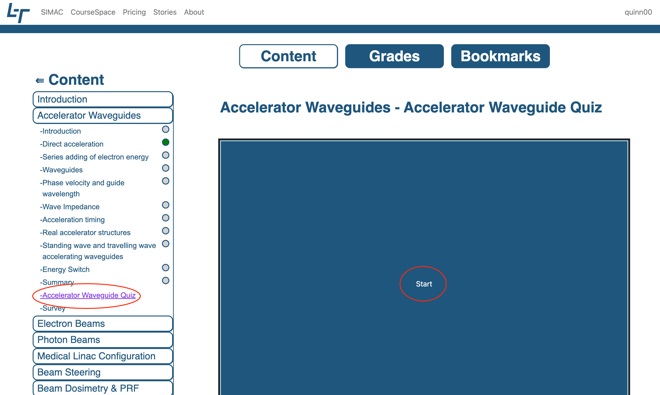
A chapter quiz — click Start to begin.
Grades
Where results live
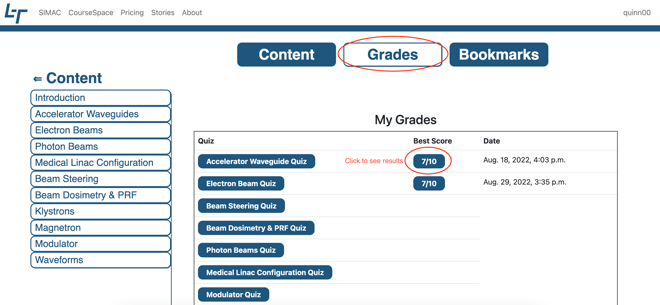
Quiz results are stored in the Grades tab.
Reviewing answers
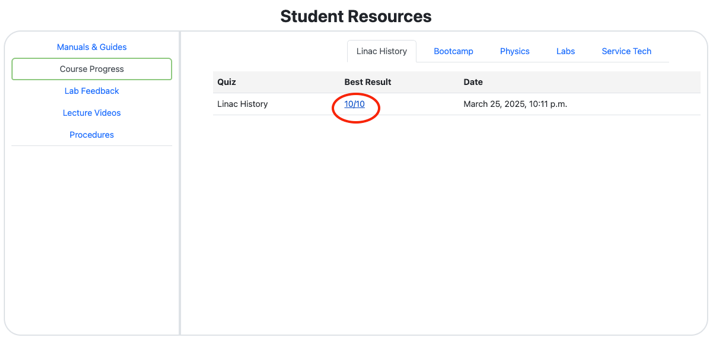
Click a result to investigate your answers.
Back to the content
Click the title to return to the quiz in the content section.
Best mark
Your best mark is the one displayed.
The Grades tab; click a result to review your answers.
Bookmarks
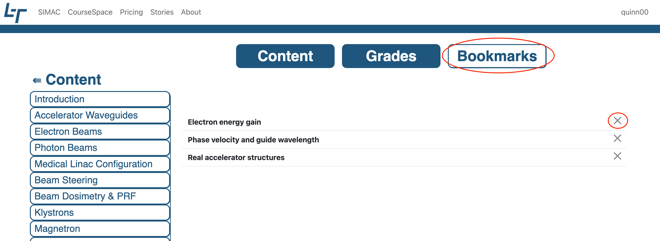
To bookmark a topic, click “Add Bookmark” at the bottom of it. In the Bookmarks tab, click a topic name to jump straight to that section of the textbook.
Remove one with “Remove Bookmark” at the bottom of the section, or the “x” beside the topic in the Bookmarks tab.
The Bookmarks tab; click a topic to jump to it, or the x to remove it.
Linax Technologies Ltd.
Platform Guide
Simac Labs
PLATFORM · 05
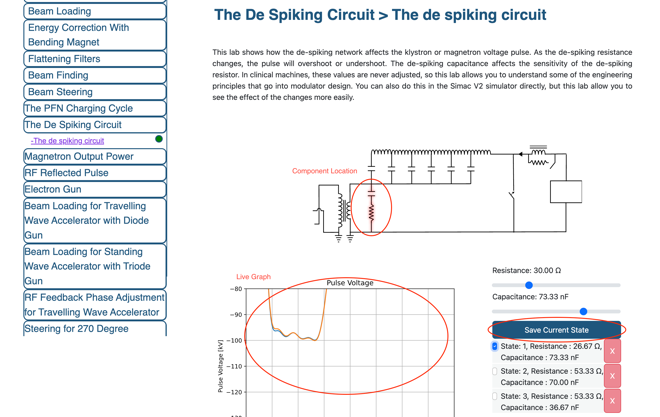
Found in the “Simac Labs” course portal, labs isolate a part of the simulator with guided questions.
Labs 1 – 6 · Simac V1
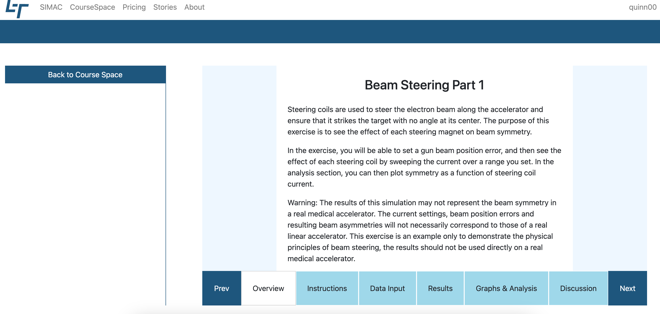
Work through the lab across the tabs, then complete the questions when you are done.
A Simac V1 lab — follow the tabs, then answer the questions.
Labs 7 and above · Simac V2
Guided questions
Read the questions to help guide you through the lab.
Component image
Shows which part of the linac you are changing.
Live graph
Moving a slider instantly changes the graph.
Save State & compare
“Save State” adds the state to a list below the slider. Check it on to display it on the live graph, or click the X to remove it.
A Simac V2 lab — slider, live graph and the saved-state list.
Linax Technologies Ltd.
Platform Guide
Student Resource Portal
PLATFORM · 06
The student resource portal is the one-stop location for everything to do with your course.
Getting there
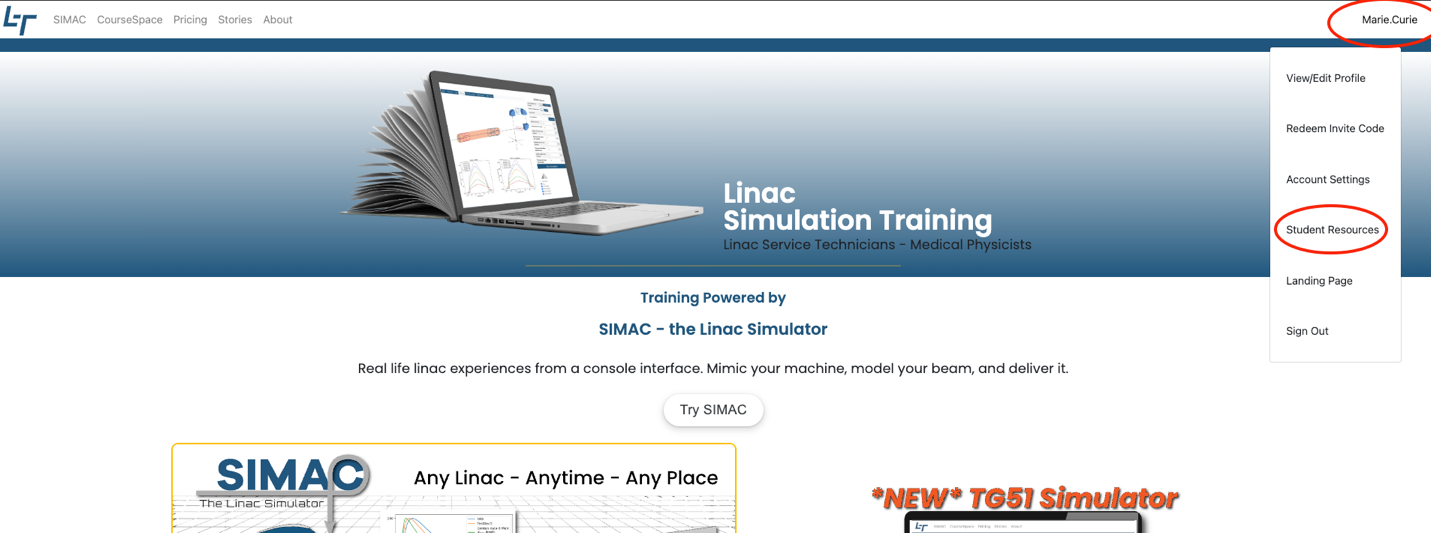
Open the top-right drop-down and select “Student Resources”.
Top-right drop-down → Student Resources.
What you will find
Manuals and Guides
A welcome package explaining what you have access to, plus manuals for using Simac.
Course Progress
All your available quizzes and labs, and results for the ones you have completed.
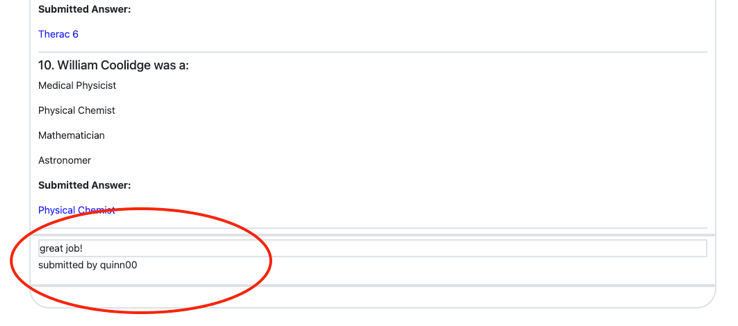
Quiz Feedback
Select a quiz result and scroll to the bottom to see your instructor's feedback.
Lab Feedback
Labs with instructor feedback are collected here.
Procedures
Access your Simac procedures, and download them as an Excel file.
The portal: Manuals & Guides, Course Progress, Lab Feedback, Lecture Videos and Procedures.Feedback appears at the bottom of a quiz result.